

Documentation
Using Moole Access Tokens
Moole supports two kinds of access tokens — a Personal Access Token (PAT) for IDE plugins and an API Token for CI/CD. Pick the right one, then wire it into VS Code or Jenkins to run SCA and SAST scans on your code.
# What kind of token do I need?
Both token types live under Settings → Developer in the dashboard, but they exist for different jobs. Pick the one that matches how you'll use it.
PAT
Personal Access Token (PAT)
Authenticates you as a developer in interactive tools. Tied to your user account.
- Used by
- IDE plugins — VS Code (Moole Code Security extension) and other editor integrations.
- Scope
- Inherits your user's access. Stored locally on your machine.
- Form fields
- Token name, Note, Expiration.
API Token
API Token
Authenticates unattended, machine-to-machine workloads. Not tied to any single user.
- Used by
- CI/CD plugins — Jenkins (Moole Security task), pipelines, and automation scripts.
- Scope
- Scoped to an Organization or a single Project. Stored as a CI credential.
- Form fields
- Token name, Note, Type (Organization or Project), Expiration.
# Create your token
Both flows live under Developer settings and only take a few fields. Generate a PAT for your IDE, an API Token for CI/CD.
PAT
Personal Access Token (PAT)
Go to Settings → Developer → PAT in the dashboard. The form is shown directly on the page.
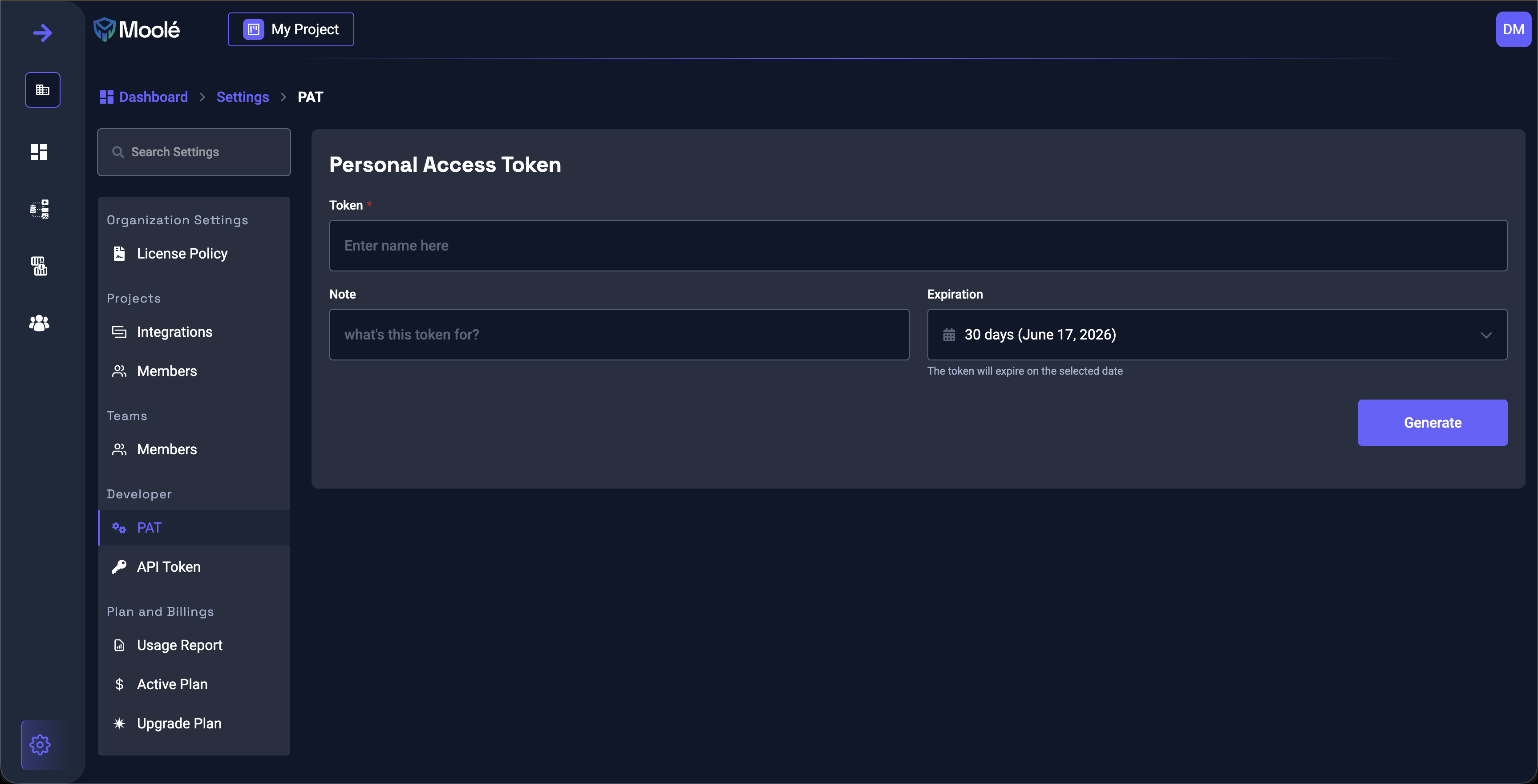
- 1
Name your token
Enter a short, descriptive Token name (e.g., `My laptop VS Code`) and an optional Note.
- 2
Set an Expiration
Pick how long the token should remain valid. It expires automatically on the selected date.
- 3
Generate and copy
Click Generate, then copy the token immediately — it is shown only once.
API
API Token
Go to Settings → Developer → API Token and click New Access Token to open the form.
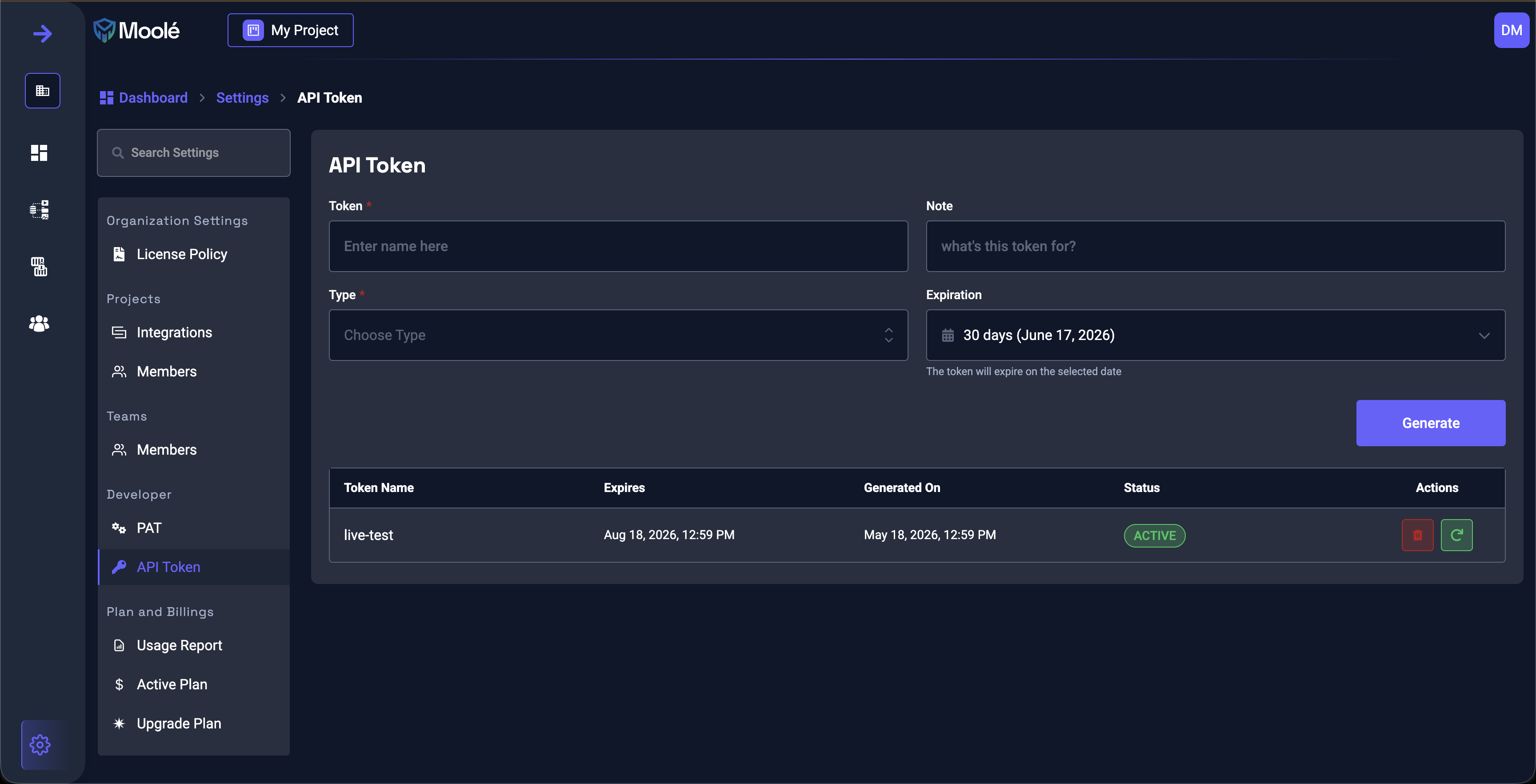
- 1
Name your token
Give the token a short, descriptive name (e.g., `Scan code project`) and an optional Note.
- 2
Choose the Type (scope)
Pick Organization (works across every project) or Project (scoped to one project).
- 3
Set an Expiration
Pick how long the token should remain valid. It expires automatically on the selected date.
- 4
Generate and copy
Click Generate, then copy the token immediately — it is shown only once.
# Use your token
Pick the integration that matches your workflow. The IDE flow uses your PAT; the CI/CD flow uses your API Token.
The Moole Code Security extension uses your PAT to run SCA and SAST scans automatically every time you save a file.
- 1
Install Moole Code Security
Open the Extensions view in VS Code, search for Moole Code Security, and install it.
- 2
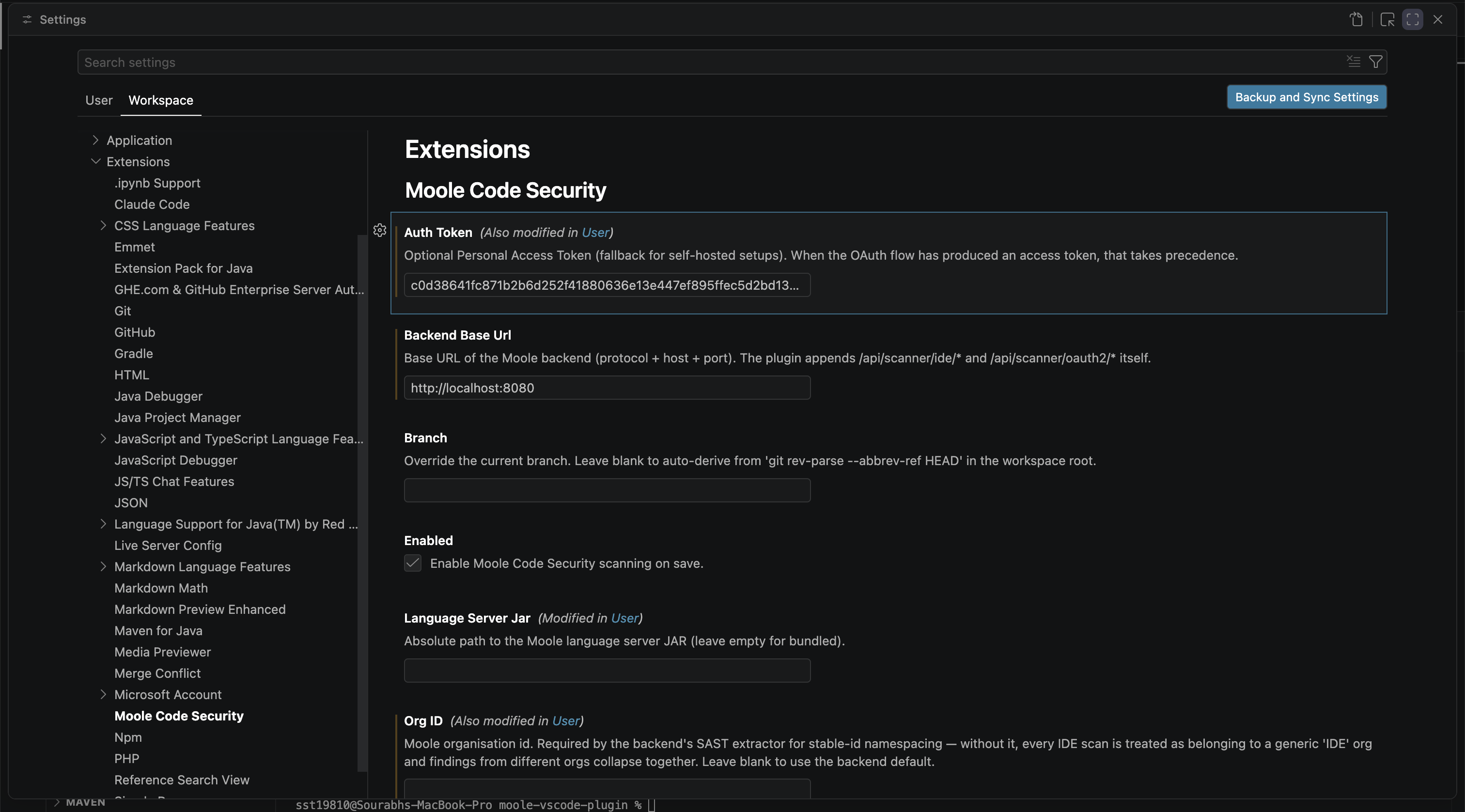
Open the extension settings
Go to Settings → Extensions → Moole Code Security. Paste your PAT into Auth Token, set Backend Base URL, and (if applicable) set Org ID.
- 3
Reload the window
Open the Command Palette (
Cmd+Shift+PorCtrl+Shift+P) and runDeveloper: Reload Windowso the extension picks up the credentials. - 4
Save any project file to scan
Open a file in your project and save it (
Cmd+SorCtrl+S). Moole runs SCA and SAST on save and surfaces findings inline.